INDHOLDSFORTEGNELSE
- Shopify: Multiple fulfillments to different locations on the same order line
- Shipmondo: Update to host ID format
- Bundles: Releasing bundles
- Bundles: Does not support “pick only” and “pick and pack separately”
- Copy locations in warehouse configuration
- Load unit status: Mobile friendly
- Warehouse transfer setup: Set minimum stock level on “From warehouse”
- Warehouse transfer: Select alternative pick location
- Inventory: Change inventory status
- Packing table: Print label for packing table
- Email templates: Insert image
- 3PL: Send “purchase order closed” email to goods owner
- 3PL: Packing slip configuration per goods owner
- Pallet picking: Setting to control completion of pallet picking
- OpenAPI/Returns: ExternallyRefunded
- Bug fixes and other updates
Shopify: Multiple fulfillments to different locations on the same order line
With release 3.29, PeakWMS introduces support for multiple fulfillments to different locations on the same order line.
This means you can now split a fulfillment on a single order line in Shopify across different locations, and have PeakWMS fulfill the items at the locations specified on the fulfillment in Shopify.
For example, if you split a fulfillment so it must be fulfilled from two different warehouses, and the items are shipped separately from each warehouse, PeakWMS will send 2 pickOrderPacked messages – one for each pick order – so the items are fulfilled at the correct location in Shopify.
Consolidation when picking from multiple warehouses
If you pick from multiple warehouses, but ship the order as a single shipment, PeakWMS will consolidate the fulfillment in Shopify, when the order is packed. In this case, a single pickOrderPacked message is sent to Shopify, indicating which warehouse the order was fulfilled from.
Shipmondo: Updated host ID format
As described in a previous email (sent 19/12-2025), the Shipmondo integration will be updated with this release. The update is due to a change from Shipmondo to standardize the host ID format across shipping methods/carriers.
This change means that new shipping templates created in Shipmondo, as well as updates to existing shipping templates in Shipmondo, will require new mapping in PeakWMS.
The current logic is retained so that it is still possible to retrieve labels with the existing setup. However, it is important to be aware that changes to existing shipping templates require new mapping (a change to the host ID) in the shipping method configuration in PeakWMS.
Bundles: Releasing bundles
With this release, it is no longer possible to partially release a bundle. This change is due to the fact that bundles cannot be partially fulfilled in the webshop. Until now, PeakWMS has captured the full payment for a bundle when the first part was picked.
Going forward, it will only be possible to release bundles where all child products included in the bundle, ordered by the customer, can be picked.
Bundles: Does not support “pick alone” and “pick and pack alone”
The bundles feature in PeakWMS does not support the use of the picking types “pick alone” and “pick and pack alone” on products included in a bundle. This applies to both the parent product and the child products.
An error message is now shown explaining that “pick alone” and “pick and pack alone” are not supported in the bundles feature. This error will appear when creating or editing a bundle if you attempt to include a product whose picking type is “pick alone” or “pick and pack alone”.
Instead, it is recommended to use the picking type “manual” on products that should be included in a bundle, and then split the order during picking or packing, if the items need to be shipped in multiple parcels.
Note: This is not a change to the existing bundles functionality, but an improvement in how the behavior is explained. The bundles feature has never supported “pick alone” and “pick and pack alone”.
Warehouse: Copy locations in warehouse configuration
It is now possible to copy a location in the warehouse configuration, making it easier and faster to create identical locations in your warehouse.
You can find the option to copy a location under Settings > Warehouse > Warehouse by right-clicking the location you want to copy.
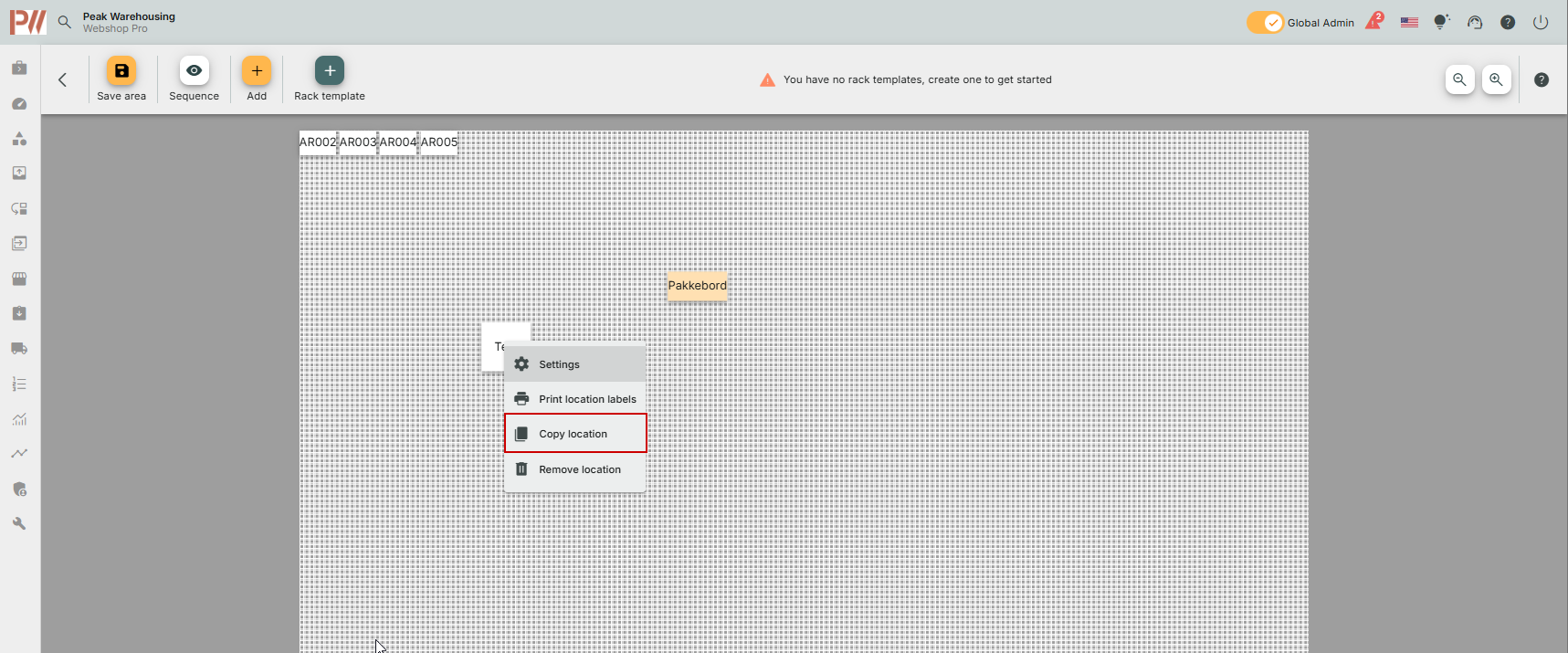
Note: This function is only available for copying floor locations. It is not possible to copy racks this way. For racks, please use rack templates instead.
Load unit status: Mobile friendly
The tool under Tools > Load units> Load unit status has been updated. The tool is now mobile friendly so that all data fits on the screen. Previously, it was necessary to scroll sideways to see all information.
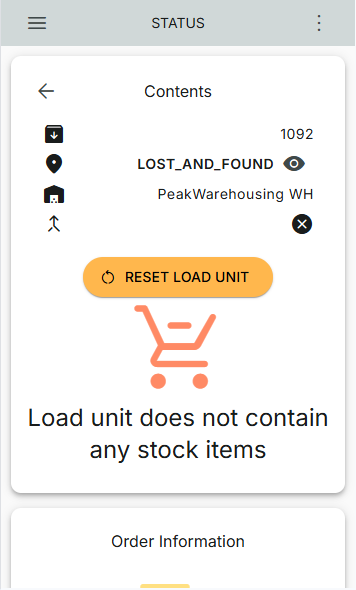
Warehouse transfer configurations: Set minimum stock level on “From warehouse”
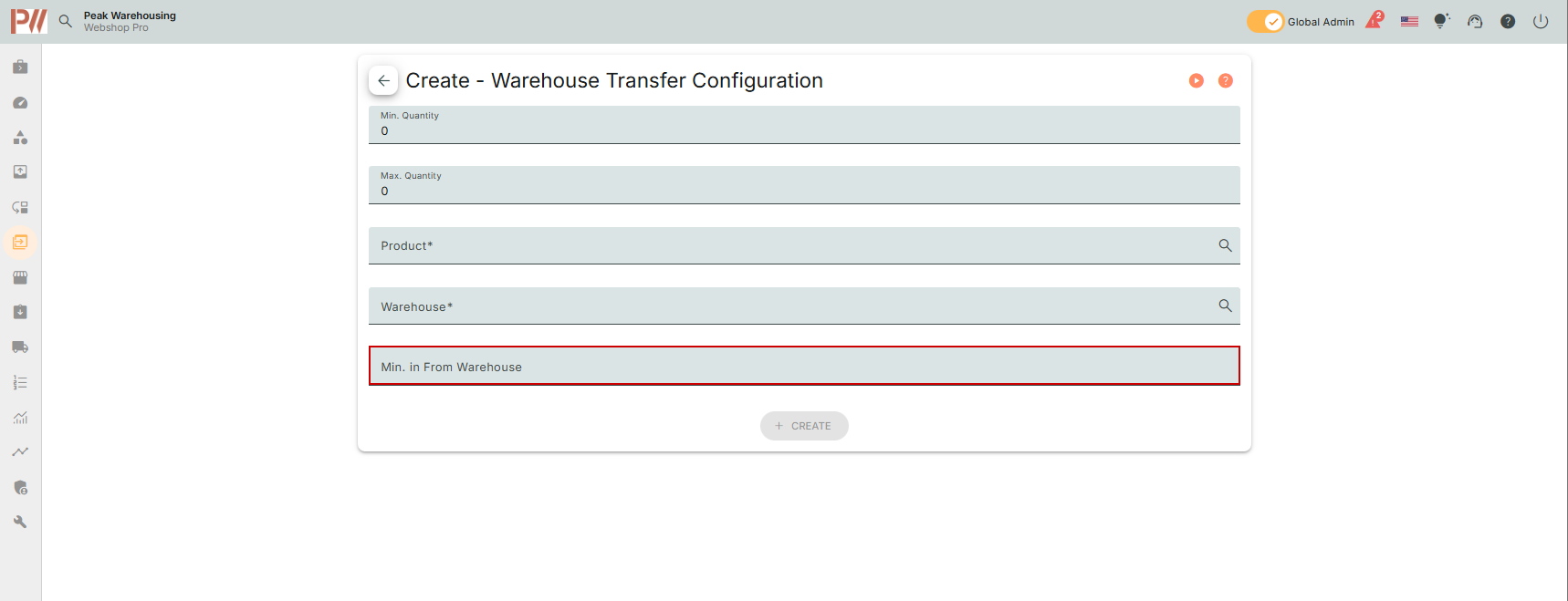
It is now possible to specify a minimum quantity on the “from” warehouse under Warehouse transfer > Warehouse transfer configurations.
Setting a minimum quantity on the “from” warehouse ensures that you do not empty the “from” warehouse, when creating a replenishment for the “to” warehouse.
The minimum quantity on the “from” warehouse can be overridden by setting the line to “Required”.
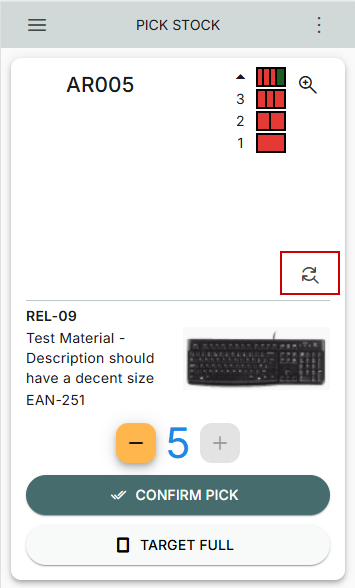
Warehouse transfer: Select alternative pick location
It is now possible to select an alternative pick location when picking warehouse transfer order lines. The function to select an alternative pick location is already available in picking and replenishment.
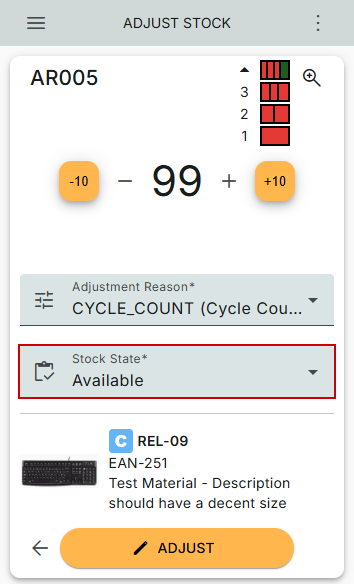
Inventory: Change stock state
It is now possible to change the state of a stock item via Tools > Stock. The field has been added so you can change the status after searching for a product and selecting a stock item for adjustment.
Packing table: Print labels for packing table
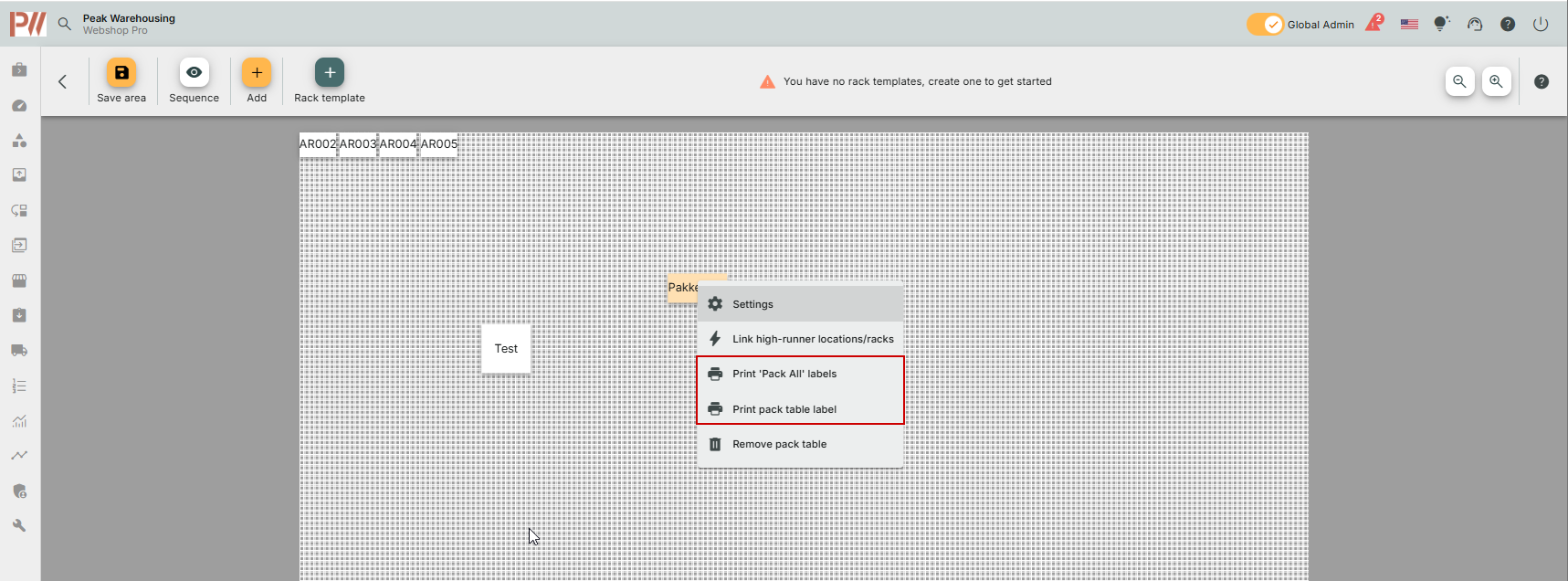
You can now print a label with name and barcode for your packing table. To be able to print the label, you must first create a label template of the type “Packing table” under Settings > Templates > Label templates.
You print the label for your packing table in the warehouse configuration by right-clicking the packing table you want a label for.
It is also possible to print a “Pack all” label for your packing table. This can be printed both in the warehouse configuration and under Admin > Warehouse > Packing table, by clicking the three-dot menu next to the packing table.
Email templates: Insert image
We regularly receive inquiries regarding missing images in emails sent from PeakWMS, even when an image link has been inserted in the email template. The issue is caused by the link not being inserted correctly in the email template.
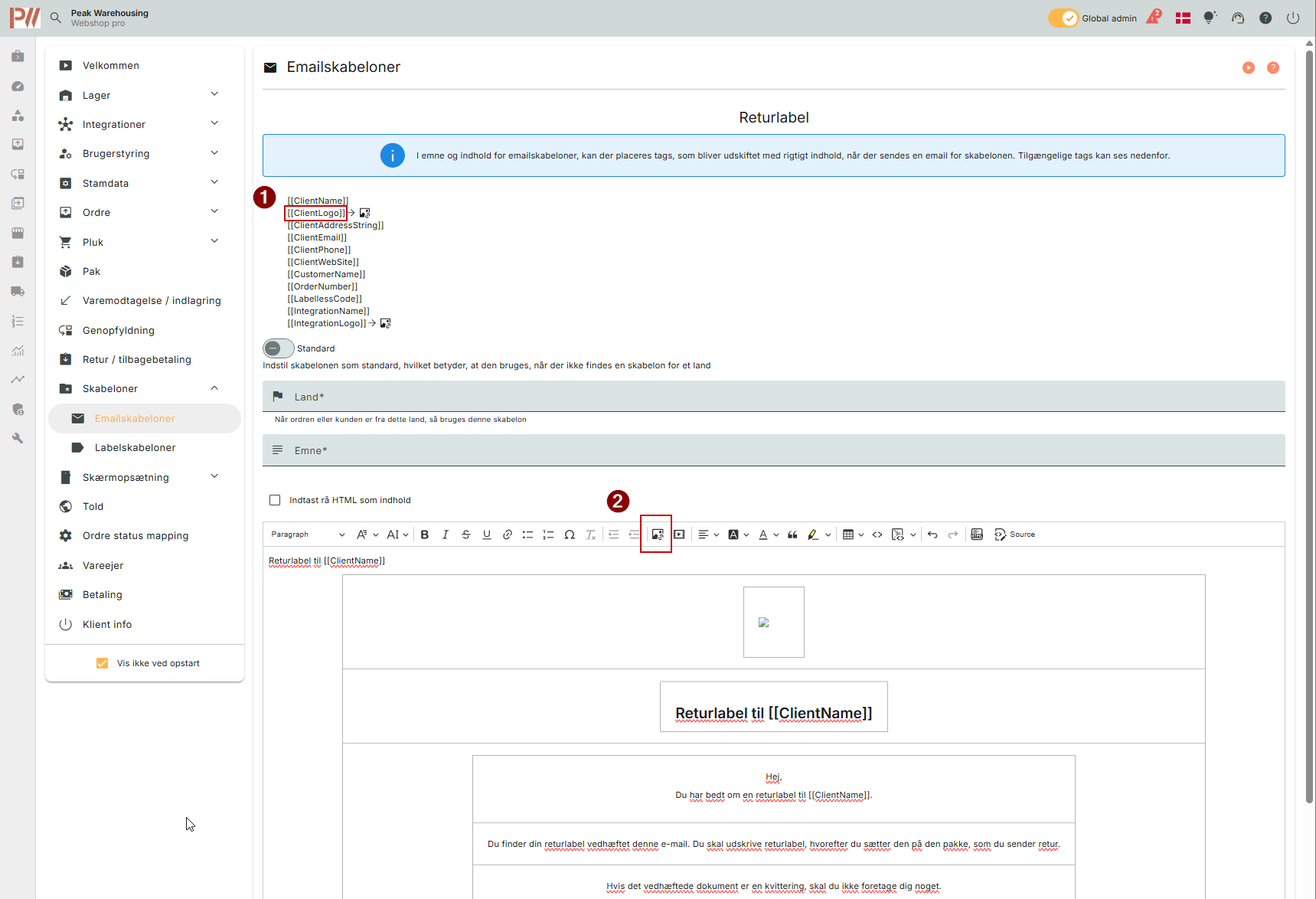
To insert an image in an email template, follow these steps:
1. When you have opened your email template, copy the tag at the top to use a logo that is registered either on the client or on the integration in PeakWMS.
2. Then click the “image” button.
3. After clicking, paste the text into the pop-up. Note: You can also insert a link to an image. However, this requires that PeakWMS has access to the image location.
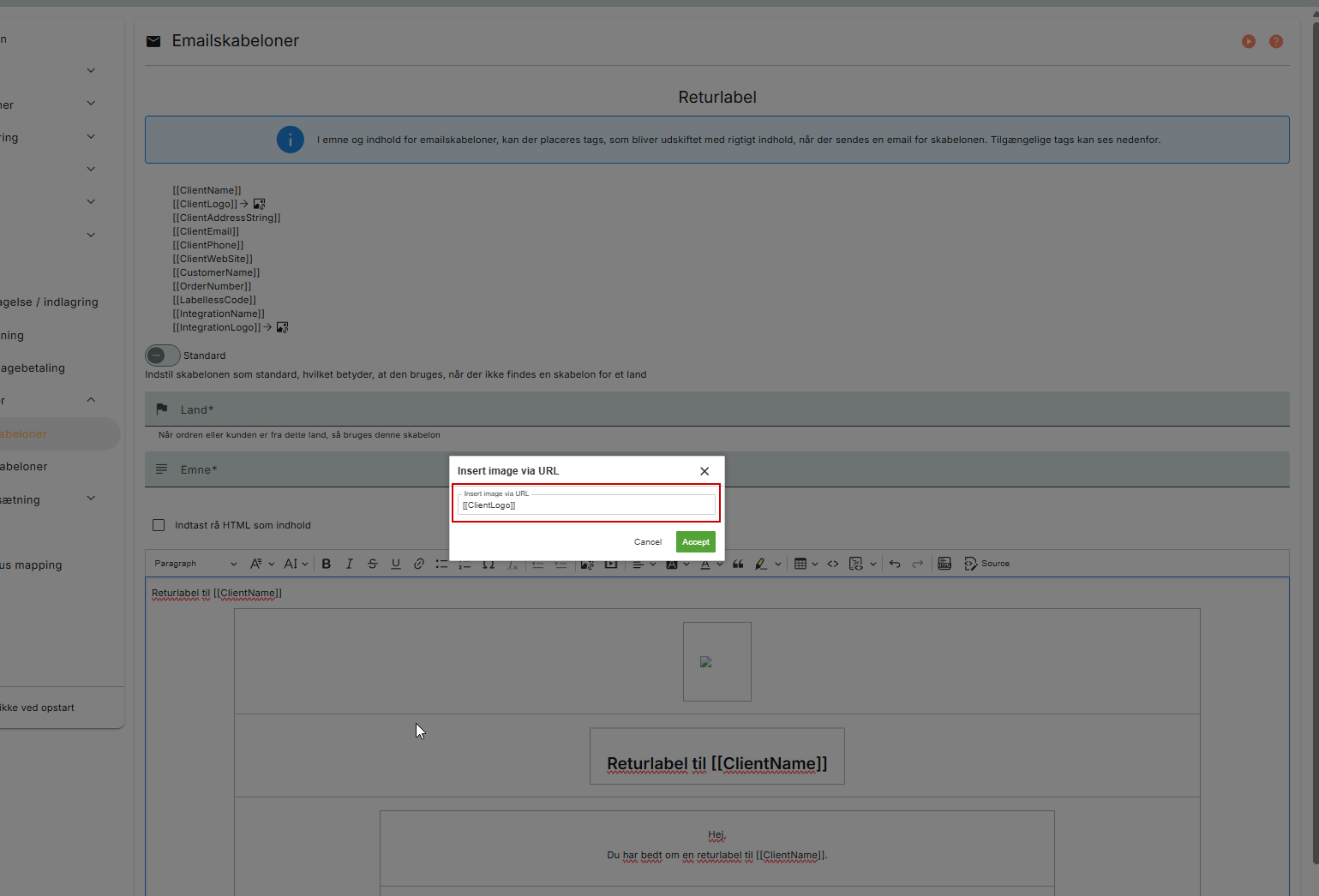
4. Then click “Accept” to insert the data into the email template. The image will then be displayed in the email.
3PL: Send “purchase order closed” email to goods owner
It is now possible to configure per goods owner whether an email should be sent when a purchase order is closed in PeakWMS.
To use this function, make sure to enter an email address on the stock owner in the following field under Settings > Goods owner when creating or editing a stock owner:
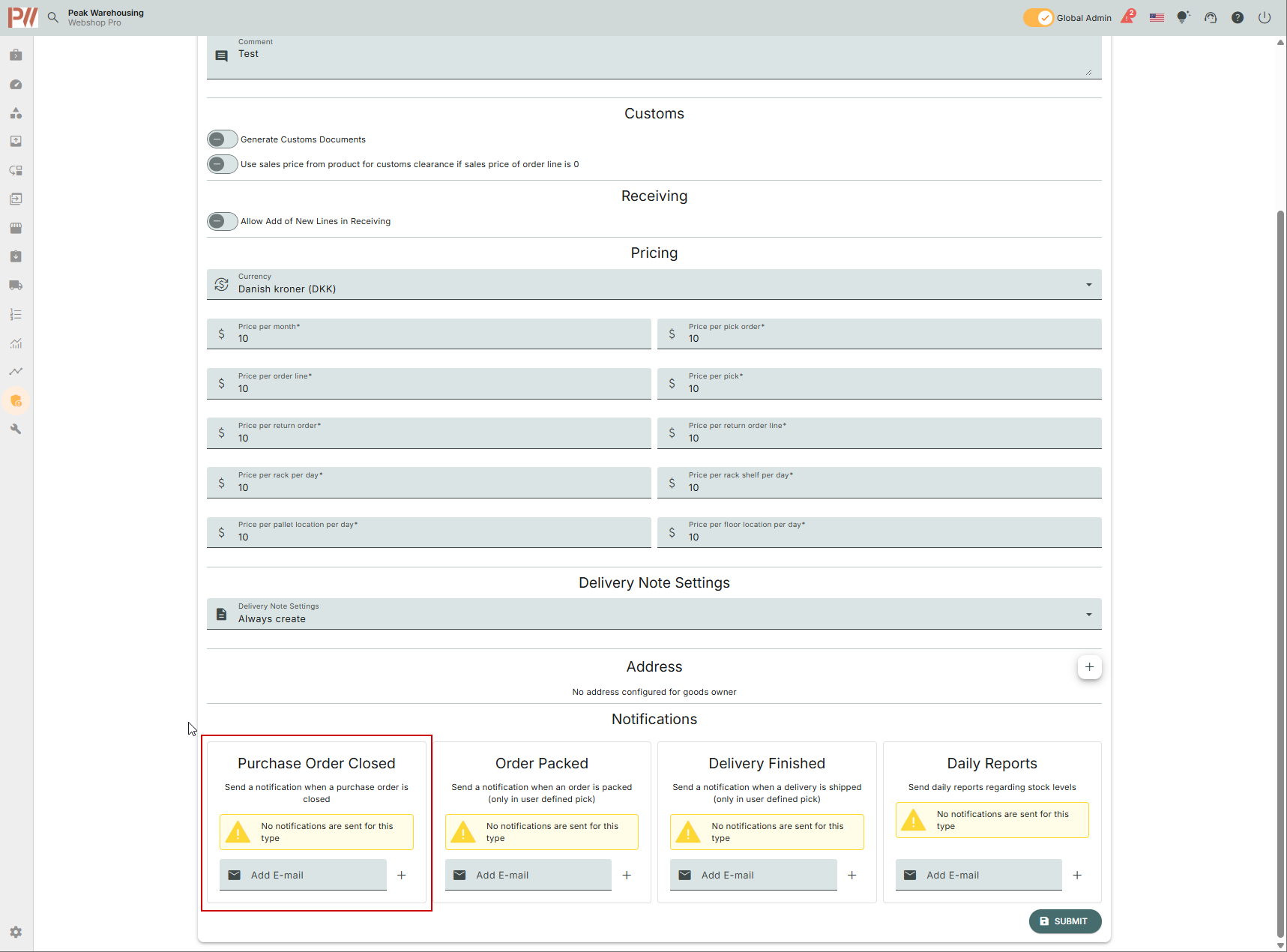
Remember to press "Enter" in the field when you have entered the email address. You can enter multiple email addresses if needed.
You can configure a custom email template for this flow. You can find it under Settings > Templates > Email template. If you do not configure your own email template, PeakWMS’ standard email will be sent when the purchase order is closed.
3PL: Delivery note configuration per goods owner
You can now specify per goods owner whether delivery notes should be created for orders when they are packed. This is done under Settings > Goods owner. You can define per goods owner whether delivery notes should be created. The delivery note that is created is the standard delivery note normally created in PeakWMS.
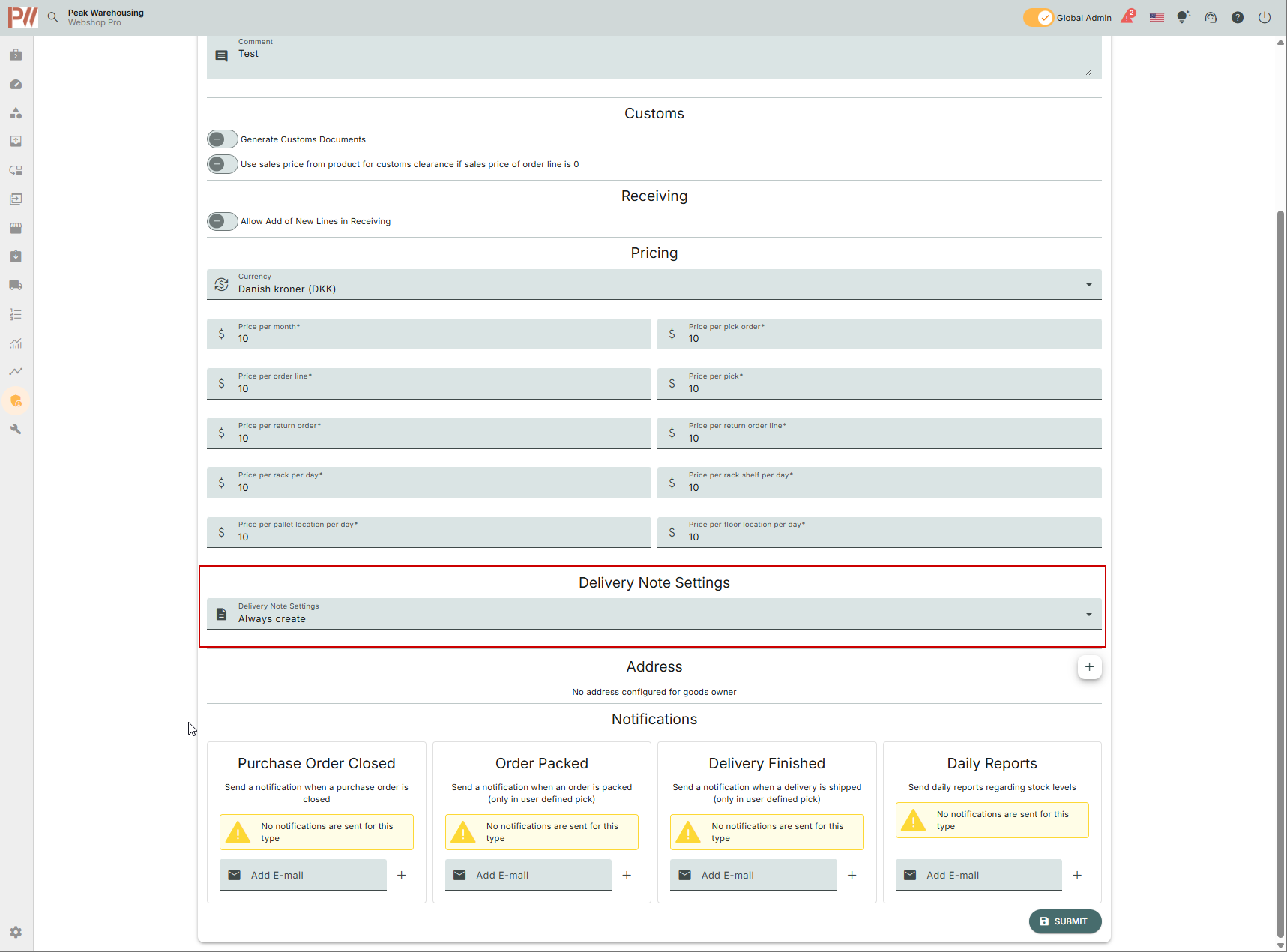
If you do not configure settings specifically per goods owner, the general setting under Settings > Orders > Order handling will be used.
Pallet picking: Setting to control completion mode of pallet picking
A new setting has been added to picking groups that use pallet picking, where you can specify how you want to complete pallet picks, that are picked in that picking group.
You can choose between the following completion modes:
- Order label
- Shipping label
- Order label, with option for shipping label on the last order
- Delievery note
OpenAPI/Returns: ExternallyRefunded
It is now possible to mark a return order as “ExternallyRefunded” via OpenAPI. If this flag is set on a return order, it will not be possible to refund the order via PeakWMS. It will still be possible to register the returned items so they can be put back into stock using the tool Return/Refund in PeakWMS.
The “Refund” button will not be available if the return order is marked with “ExternallyRefunded”.
Bug fixes and other updates
Integrations
Shopify: Moving a fulfillment is now included in StockAdjust to ensure that stock levels are correct.
Shopify: Shipping on refunded shipping lines to Shopify. PeakWMS now sends information to Shopify, when shipping is refunded on an order.
Shopify: Mapping of tags from Shopify in connection with scripting.
ShopifyPOS: By setting a product to the picking type “Ignore”, PeakWMS now ignores these items, when they are sold via Shopify POS.
Dandomain/Hostedshop: Sending multiple tracking numbers to Dandomain/Hostedshop. Previously, it was only possible to send one tracking number on orders from Dandomain/Hostedshop. This has now been updated so it is possible to send more than one tracking number per order.
Hostedshop: For Hostedshop, a recurring job has been created that fetches all orders that have not been imported into PeakWMS within x time. This is to ensure that no orders are missing in Peak due to missing webhooks from the webshop. Similar functionality is already implemented for Shopify and WooCommerce.
Shipmondo: Addition of Freight_Cost to Shipmondo calls when retrieving labels.
Shipmondo: Shipments with FedEx to Northern Ireland could not be created due to an incorrect description. This has been fixed.
Shipmondo: Option to use the warehouse’s shipping address for orders with multiple pick orders.
Uniconta: Updating an order from Uniconta deleted the shipping note. This has been fixed.
Products
Buy one get one: Orders ended in the wrong state with zero-picked or zero-packed “get one” products. Orders where the “get one” product cannot be picked or packed are NOT released for picking again. The order will move to state Packed so that the order is completed correctly. (Note: This is not a functional change. PeakWMS has never released “get one” products that were zero-picked or zero-packed).
Products/Bundles: Error in displayed available quantity for bundle main products under Products > Products.
Picking
Picking: Area overview is not shown in picking if it is toggled “on” after the pick has been loaded.
Picking: Orders with multiple pick orders where at least one pick order is of the type “Pick alone” show a “Partially picked” pop-up when scanning before the “pick alone” part has been picked.
Picking: Changing pick cart should unassign orders that are not yet picked and are assigned to the pick cart.
Picking: In bulk picking, a better explanation is now shown if one or more lines on an order have been cancelled. A pop-up now explains that the line has been cancelled.
Pallet picking: Print order label when parking a pallet pick order.
Pallet picking: Consolidation of split pallet picks.
Picking groups: Possibility to use metadata in picking groups. Using this function requires that you use the metadata fields on the outbound order in PeakWMS.
Replenishment
Replenishment: Only pick locations are shown as suggestions for put-away during replenishment.
Replenishment: Incorrect display of location when using host name, where a different location than the suggested location was scanned.
Replenishment: Unnecessary replenishments. Several users have experienced that unnecessary replenishment tasks were created for certain products. This release introduces a solution to alleviate this issue.
Replenishment: It is now possible to click the number to specify the quantity to replenish in “Replenishment during picking”.
Stock
Stock: Adjustments without adjustment reason when creating Stock Items.
Stock: Not possible to delete stock items due to old parked/archived orders.
Stock: When creating stock via Admin and in receiving, it is now possible to specify the packaging unit at which the stock item should be stored.
Purchasing
Purchasing: Splitting a purchase order did not set the purchase order in the correct state if one part of the purchase order was fully received.
Purchasing: When splitting a purchase order and setting a new expected delivery date on the split, the expected delivery date was not updated correctly. The expected delivery date remained the same as on the other part of the purchase order, and was not updated with the new value.
3PL
3PL: Not possible to send purchase order email due to null value in purchase requirements. This has been fixed.
3PL: There have been issues inviting users with a goods owner. This has now been fixed so it is possible to invite users linked to a goods owner.
Order delivery
Order delivery: Show the load carrier’s location in the overview of pick orders under Tools > Order delivery.
Order delivery: The order delivery flow now accepts both picked and packed pick orders.
Order delivery: It is now possible to click the number to specify the number of load units to be used for an order.
Order delivery: Orders using order delivery and linked as combined shipment have shown an error when the order has gone through the order delivery flow. The error meant that orders with combined shipment and order delivery were not completed correctly. This has been fixed so the orders are split in the same way as for packing normal combined shipments, allowing pickOrderPacked to be sent to the webshop.
Warehouse transfer
Warehouse transfer: Required warehouse transfer lines must be included in the StockAdjust message to the webshop to ensure correct quantities on all locations.
Warehouse transfer: View and reprint labels under Warehouse transfer > Warehouse transfer orders by clicking the warehouse transfer order and selecting “Labels and documents”.
Reports
Reports: A number of additional fields have been added to the “Stock binding” report.
Customs
Customs: Import address is no longer mandatory when creating customs documents for a specific country under Settings > Customs.
Put-away
Put-away: Two input fields were being filled during cross docking to pick location. This has now been changed so that input is only written in the pop-up input field for selecting location.
Orders
Orders: Maximum length on form fields. A character limit has been set on the text fields.
Pickup
Pickup: Change of text in the “Pickup” flow when using location management in the pickup flow. The flow now shows “Scan pickup number” instead of “Scan order number”.
General
Dialogs: Ability to search in % fields in admin dialogs. It is now possible to search fields that contain % in admin dialogs. This means, for example, that you can search the “Fulfillable” column in Orders.
Dialog search: An error has been detected when saving a search, if the search is saved with the same description as an existing saved search in the same dialog. If a search is created with the same description, an error is now shown stating that the search cannot be saved, because a saved search with the same description already exists.
Dashboard: Archived pick orders are now included in the “Packed” dashboard component, so it is possible to see the number of packed orders historically.
General: Decimals and thousand separators have now been standardized so the same format is used throughout PeakWMS.
Printer: Dangerous goods label printer is no longer shown as an option if no dangerous goods label printer has been configured.
Export: If more than 100,000 lines were exported, there were issues where the export did not continue as a background job as intended. This has now been fixed so background export works again.
app-test: Update of stock levels on goods receipt in the test app.
Var denne artikel nyttig?
Fantastisk!
Tak for din feedback
Beklager, at vi ikke var nyttige
Tak for din feedback
Feedback sendt
Vi sætter pris på din indsats og vil forsøge at rette artiklen